Configure the Windows VPN
This topic tells you how to configure the Windows VPN to work with the RADIUS integration.
- On the Windows system open settings.
- From the settings home page, or using Find a setting, select VPN.
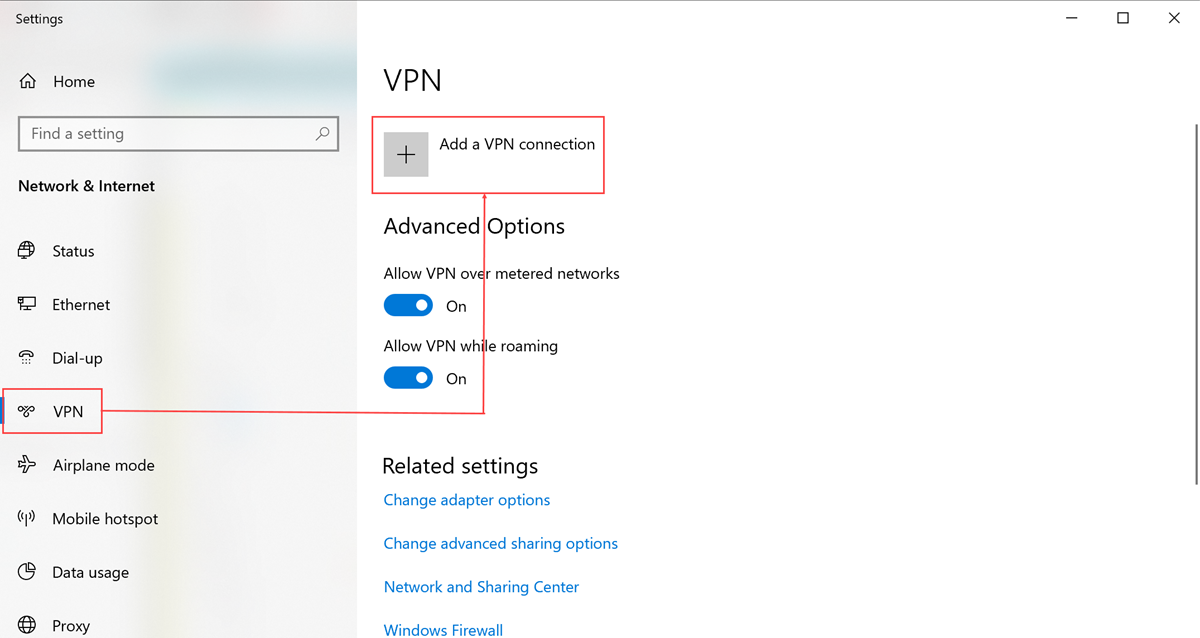
- Click Add a VPN connection.
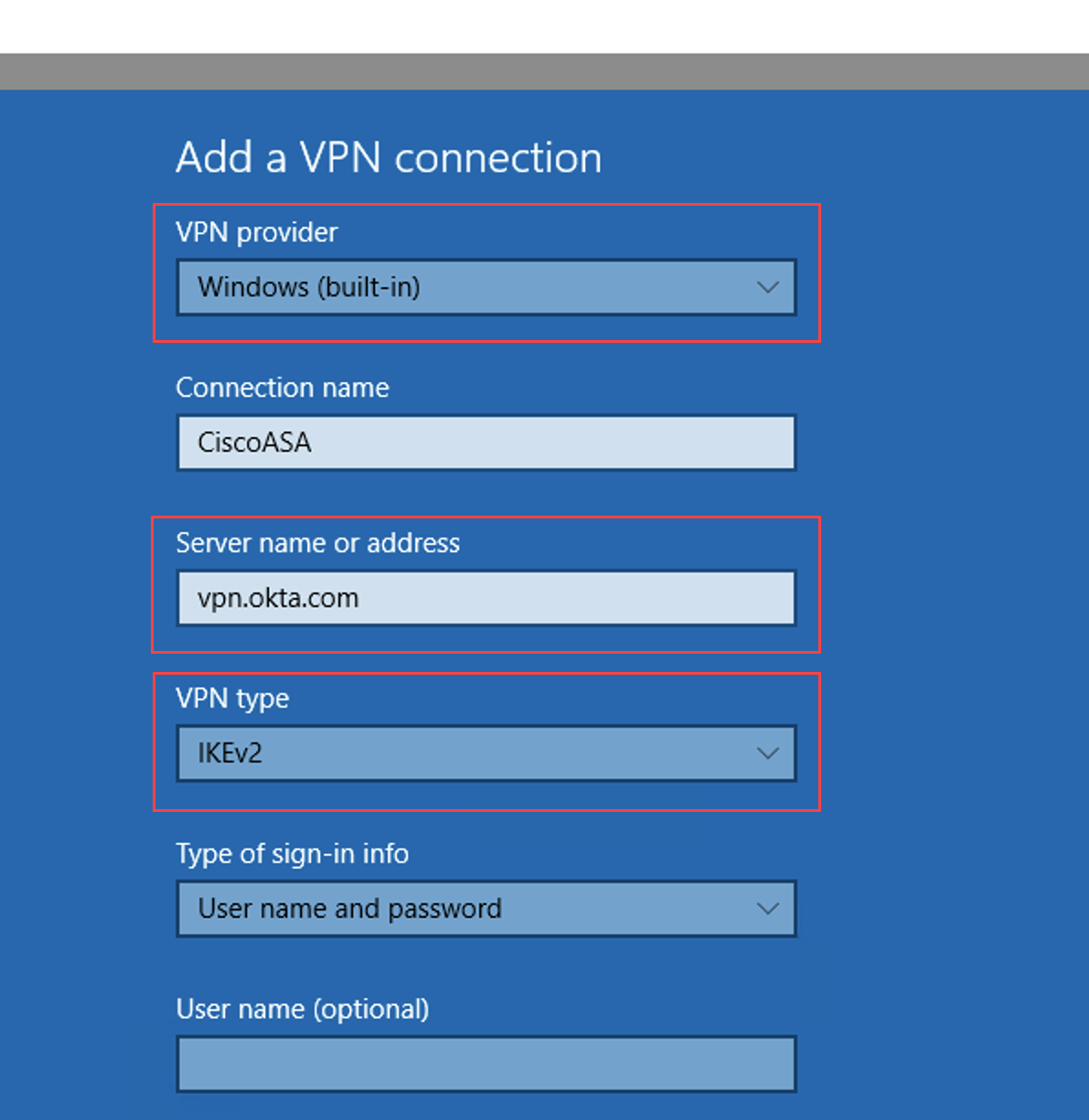
-
Enter:
-
VPN provider:
Windows (built-in). - Connection name: An appropriate name
-
Server name or address:
<ASA FQDN> -
VPN type:
IKEv2
-
VPN provider:
- Click Save.
- Go to Network Connections and select the new VPN.
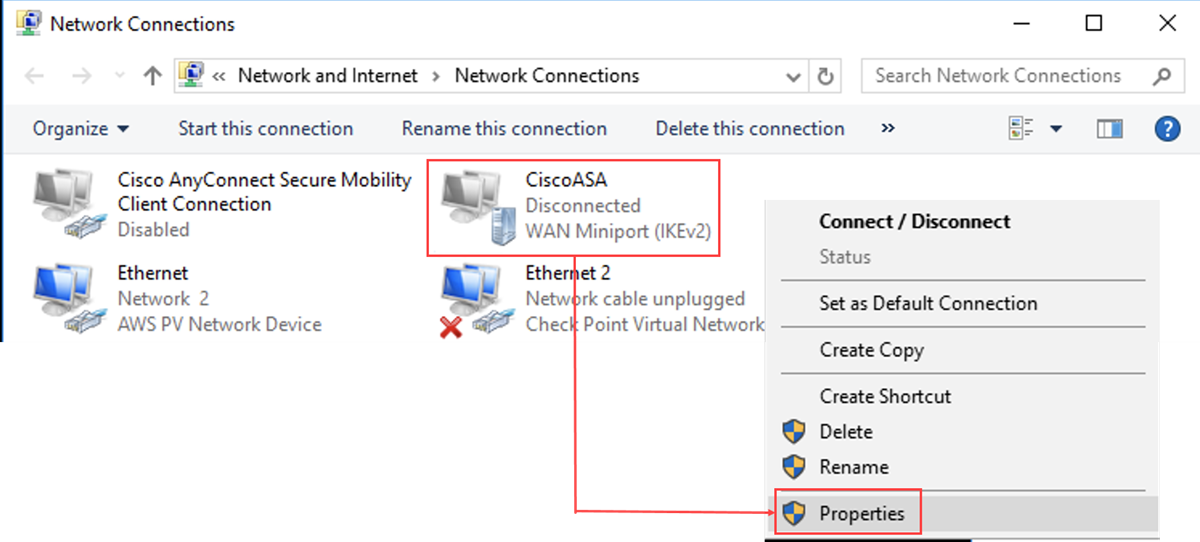
- Right click and choose Properties.
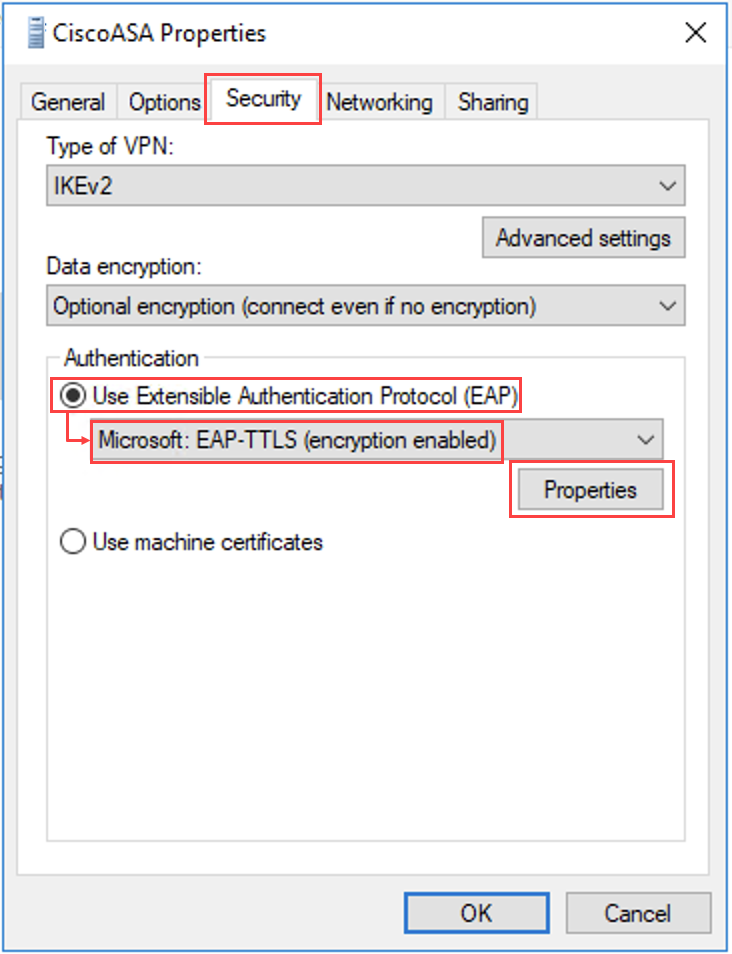
- Select the Security tab.
- In the Authentication section, select enable User Extensible Authentication Protocol (EAP).
- From the dropdown menu select Microsoft: EAP-TTLS (encryption enabled).
- Click Properties.
- In the Client Authentication section of the TTLS Properties dialog, select Select a non-EAP method for authentication and then choose Unencrypted (PAP).
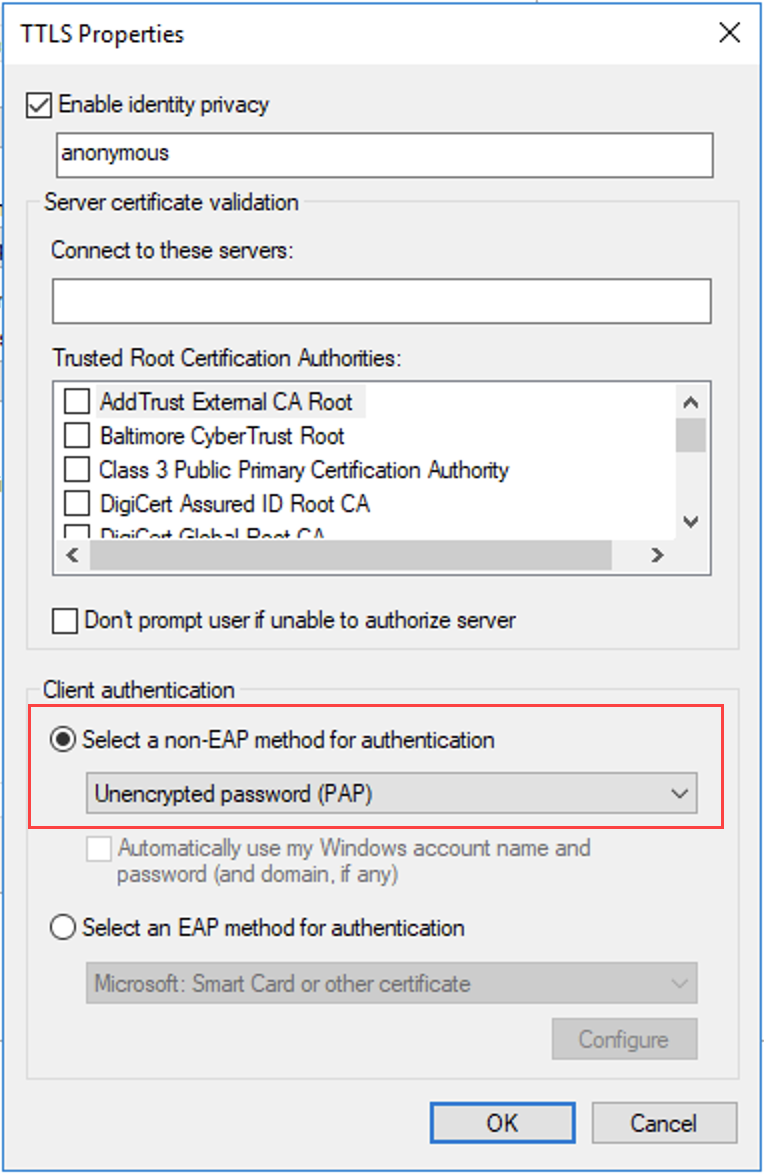
- Click OK.
Next steps